How to Add a Booking Link to Your LinkedIn Profile
LinkedIn is a great place to connect with potential clients, business partners, and new opportunities. But once someone wants to talk to you, scheduling a meeting can quickly turn into a long back-and-forth about availability.
A booking link on your LinkedIn profile makes this much easier. Instead of exchanging messages to find a suitable time, visitors can simply open your booking page, choose a time that works for them, and book a meeting directly.
In this guide, we'll show you how to add your Syncory booking link to LinkedIn in just a few steps.
Step 1: Copy Your Syncory Booking Link
First, open the Syncory booking link you want to add to your LinkedIn profile.
This is the booking page that visitors will use to view your availability and book a meeting with you.
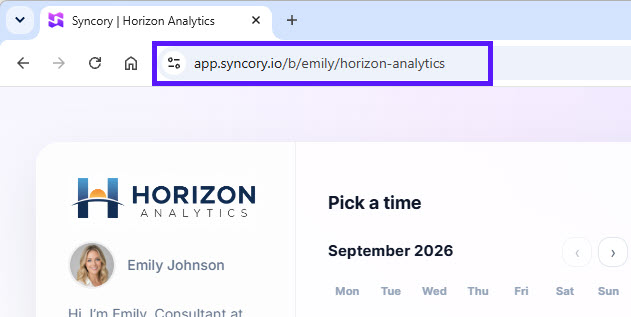
Step 2: Add Your Booking Link to LinkedIn
There are two ways to add your booking link to your LinkedIn profile. Which option is available to you depends on your LinkedIn subscription.
Option 1: Add a “Book an Appointment” Button
If you have a LinkedIn Premium Business subscription, you can add a “Book an Appointment” button directly to the top section of your profile. (Note: A regular LinkedIn Premium Career subscription does not include this option. You need LinkedIn Premium Business to add the “Book an Appointment” button.)
To add your booking link:
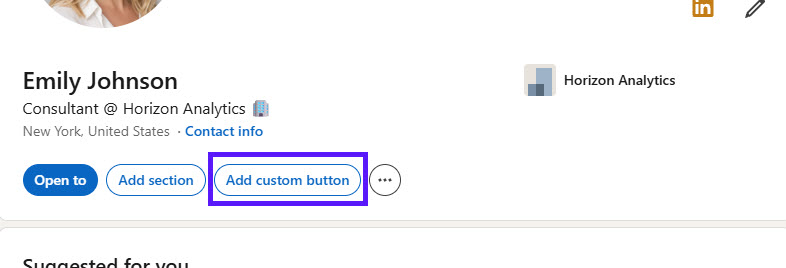
Click “Add custom button” on your LinkedIn profile.
In the window that opens, select “Book an appointment”, choose “Use an existing scheduling link”, and enter your Syncory booking URL.
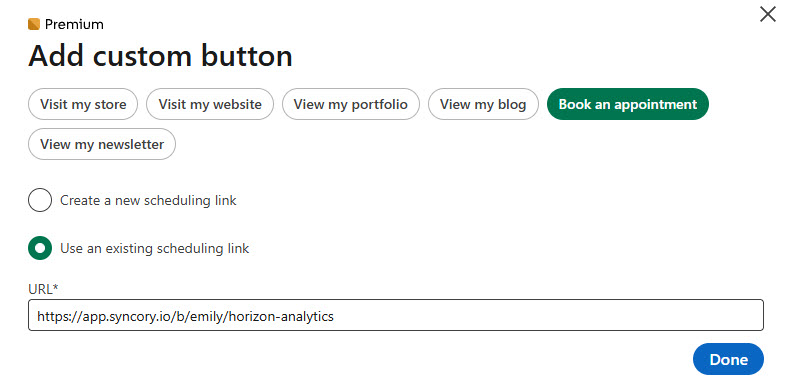
Click “Done.”
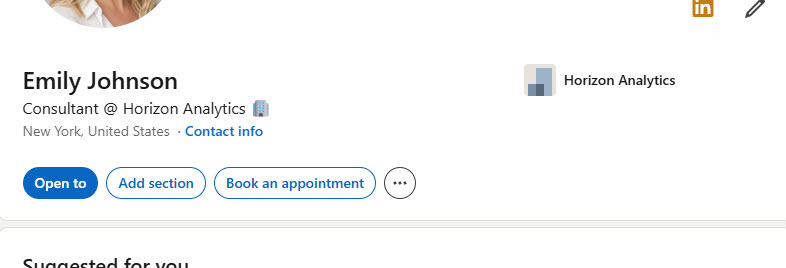
The “Book an appointment” button will now appear at the top of your LinkedIn profile, giving visitors a direct way to book a meeting with you.
Option 2: Add Your Booking Link to the Featured Section
This option does not require a LinkedIn Premium subscription. Your booking link is added to a dedicated Featured section on your LinkedIn profile.
To add your booking link:
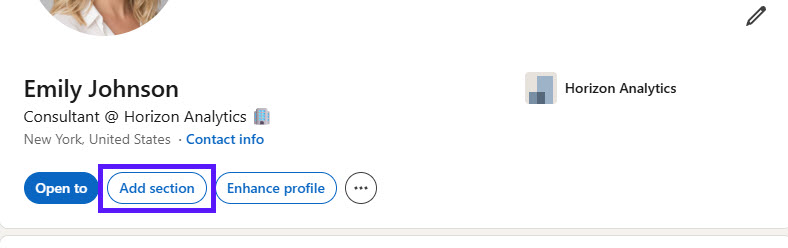
Click “Add section” on your LinkedIn profile.
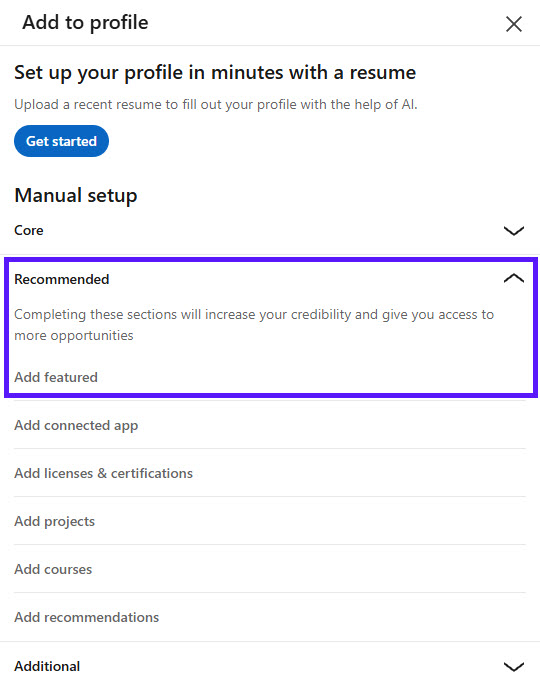
In the window that opens, expand “Recommended” and click “Add featured.”
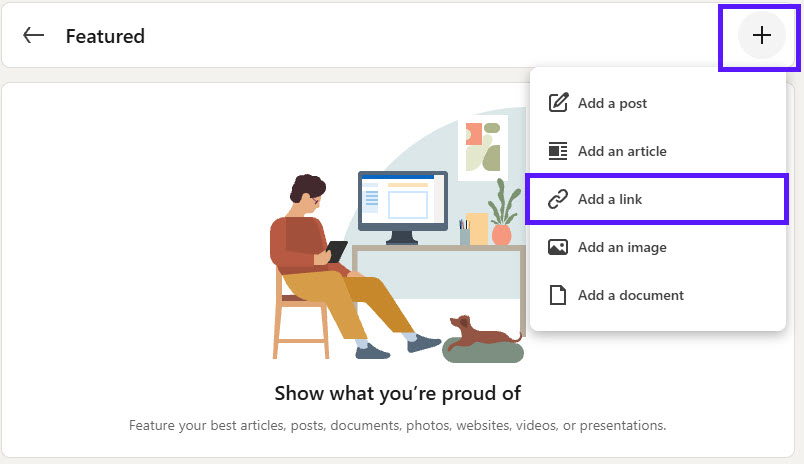
Click the + button and select “Add a link.”
Enter your Syncory booking link URL and click “Add.” You can then add a title and description for your booking link.
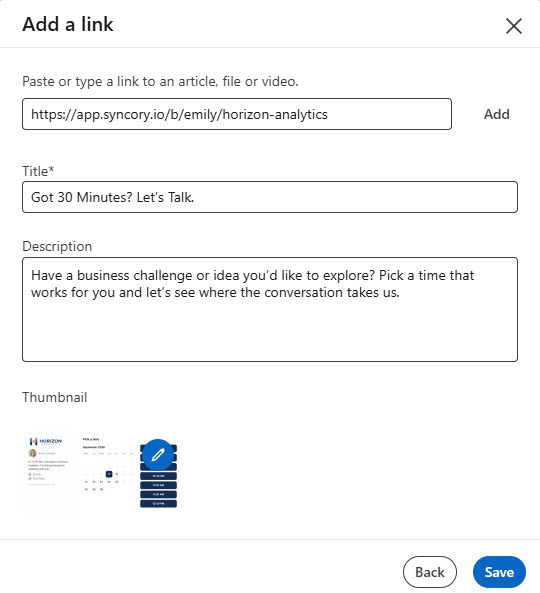
Click “Save.”
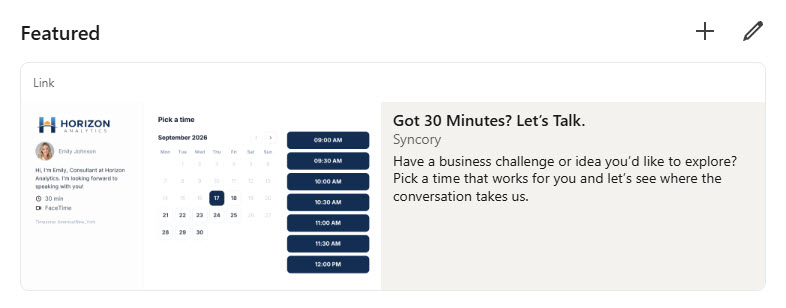
The new Featured section will now appear on your LinkedIn profile, giving visitors a direct way to access your booking page and schedule a meeting with you.
Conclusion
Adding a booking link to your LinkedIn profile is a simple way to make it easier for people to schedule a meeting with you. Instead of going back and forth about available times, visitors can simply view your availability and choose a time that works for them.
Whether you use the “Book an Appointment” button with LinkedIn Premium Business or add your booking link to the Featured section, Syncory gives your LinkedIn visitors a direct and convenient way to book time with you.