How to Get an ICS URL for Your Calendar (Step-by-Step Guide)
Last updated May 26, 2026
Most popular calendar platforms support exporting calendars through an ICS URL, sometimes also called an iCal link. These links make it possible to share, subscribe to, or sync calendars across different services and devices.
In this guide, we’ll show step by step how to find the ICS URL for calendars from Google, Outlook and Apple Calendar.
How to Get an ICS Link from Google Calendar
If you want to get an ICS link from Google Calendar, follow these steps:
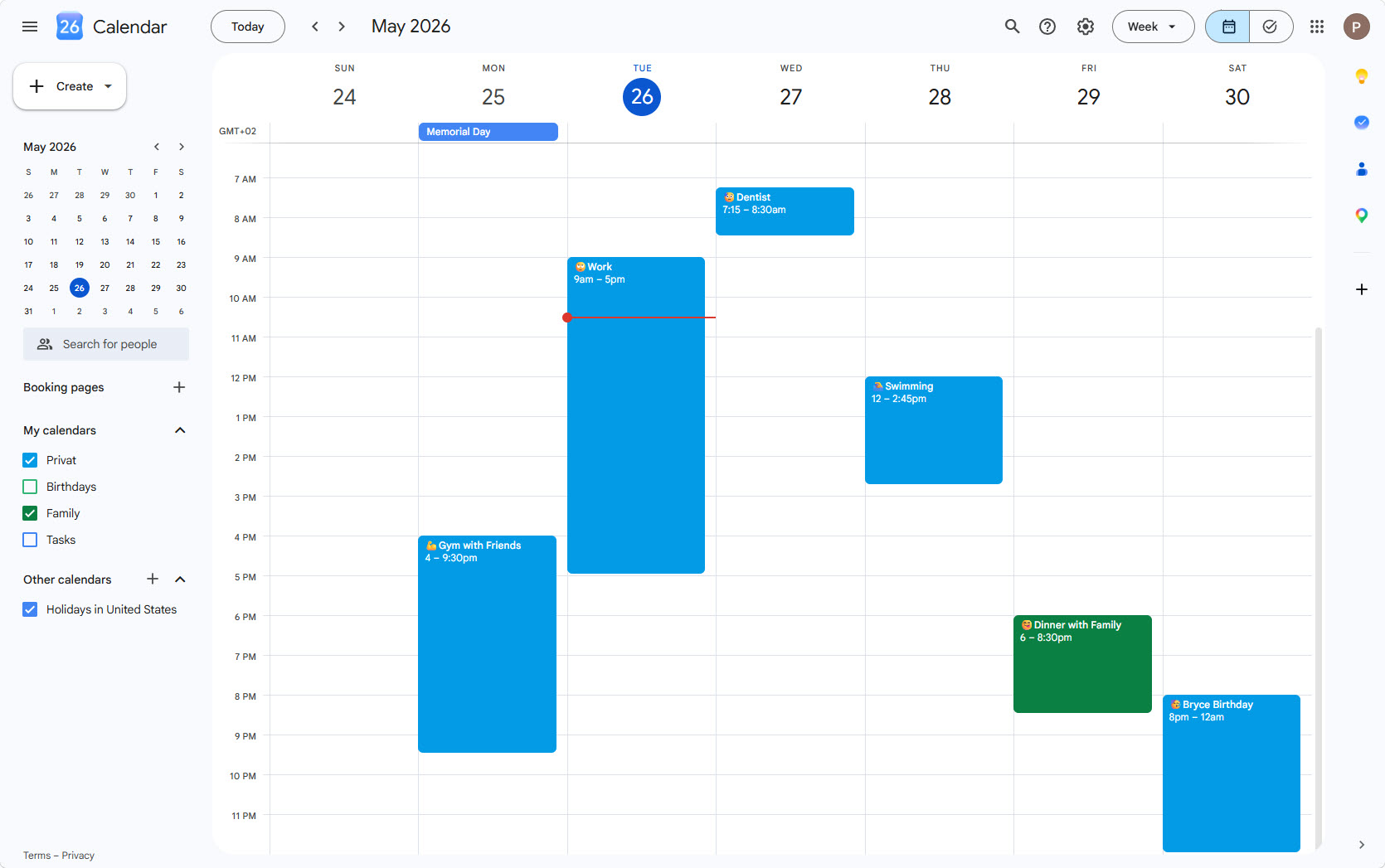
Open Google Calendar by visiting https://calendar.google.com and log into your account.
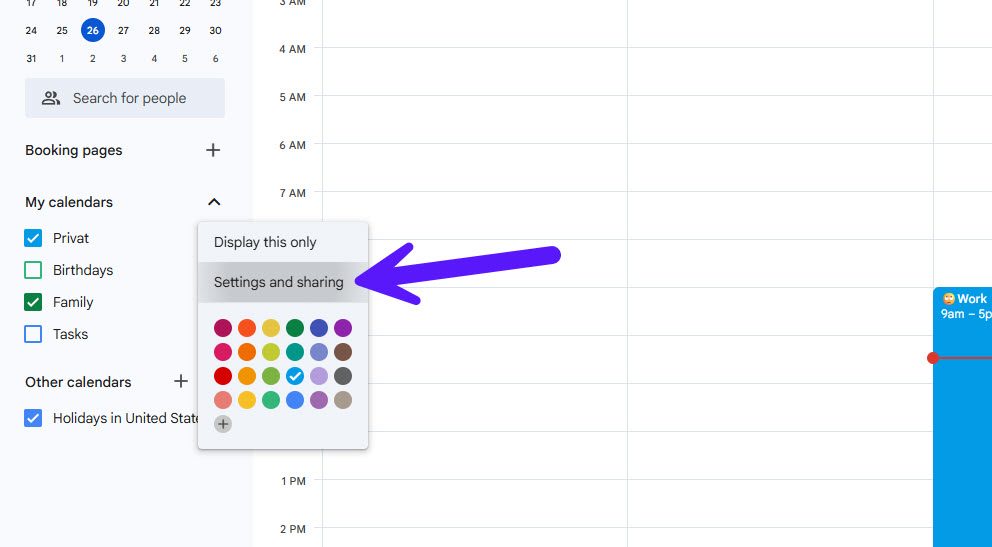
Select “Settings and sharing” from the three-dot menu after hovering over the calendar you want to export in the left sidebar.
Reveal the address by clicking the eye icon on the right side of the “Secret address in iCal format” section after scrolling down to it.
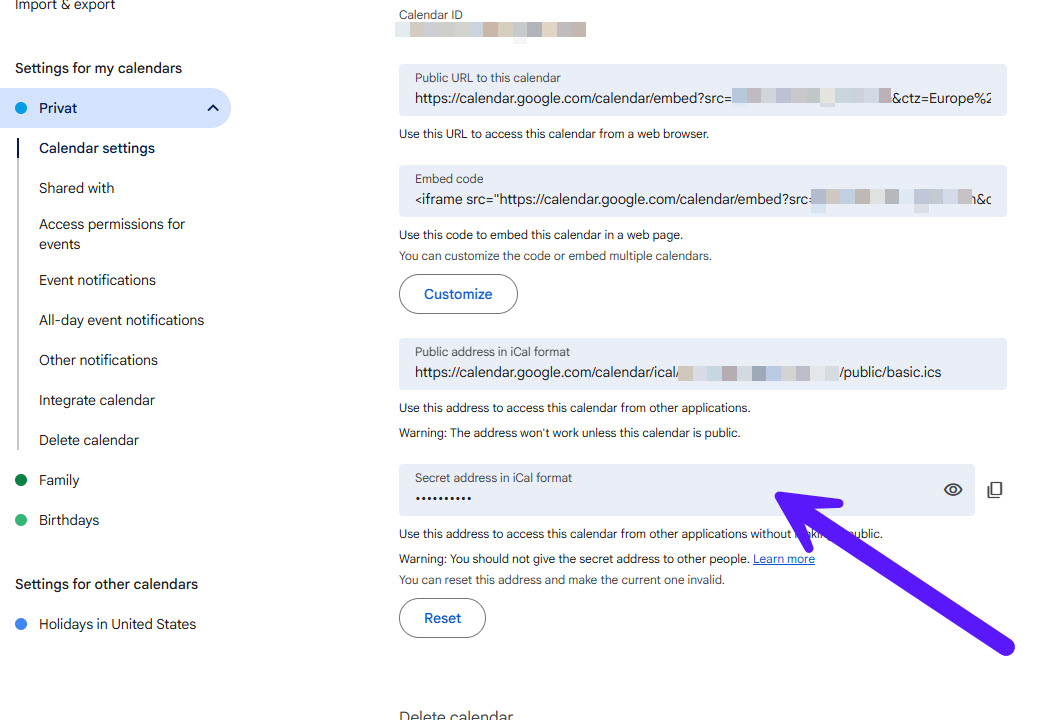
The secret iCal address allows external applications to access your calendar without making it publicly searchable. Since this link acts like a private access key, you should only share it with trusted apps or services. If the link is ever exposed, Google allows you to reset it and generate a new one.
Google Calendar also provides a public iCal address. Unlike the secret address, the public version only works if the calendar itself is set to public visibility. To enable this, go to the “Access permissions for events” section and check the “Make available to public” option.
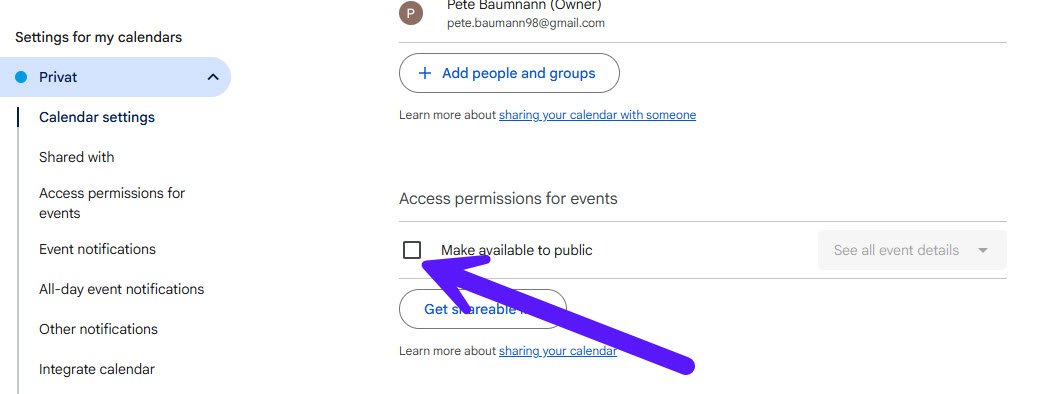
Using the public adress means anyone with the link may be able to view your events, and in some cases the calendar can even appear in search engine results.
To enable the public version, find the “Make available to public” option near the top of the same settings page. Google lets you choose whether people can see full event details or only your availability status. If privacy matters, showing only free and busy information is usually the safer option.
How to Get an ICS Link from Outlook
To create an ICS URL from Outlook, use the following steps:
Open Outlook Calendar by visiting https://outlook.live.com/calendar and sign in.
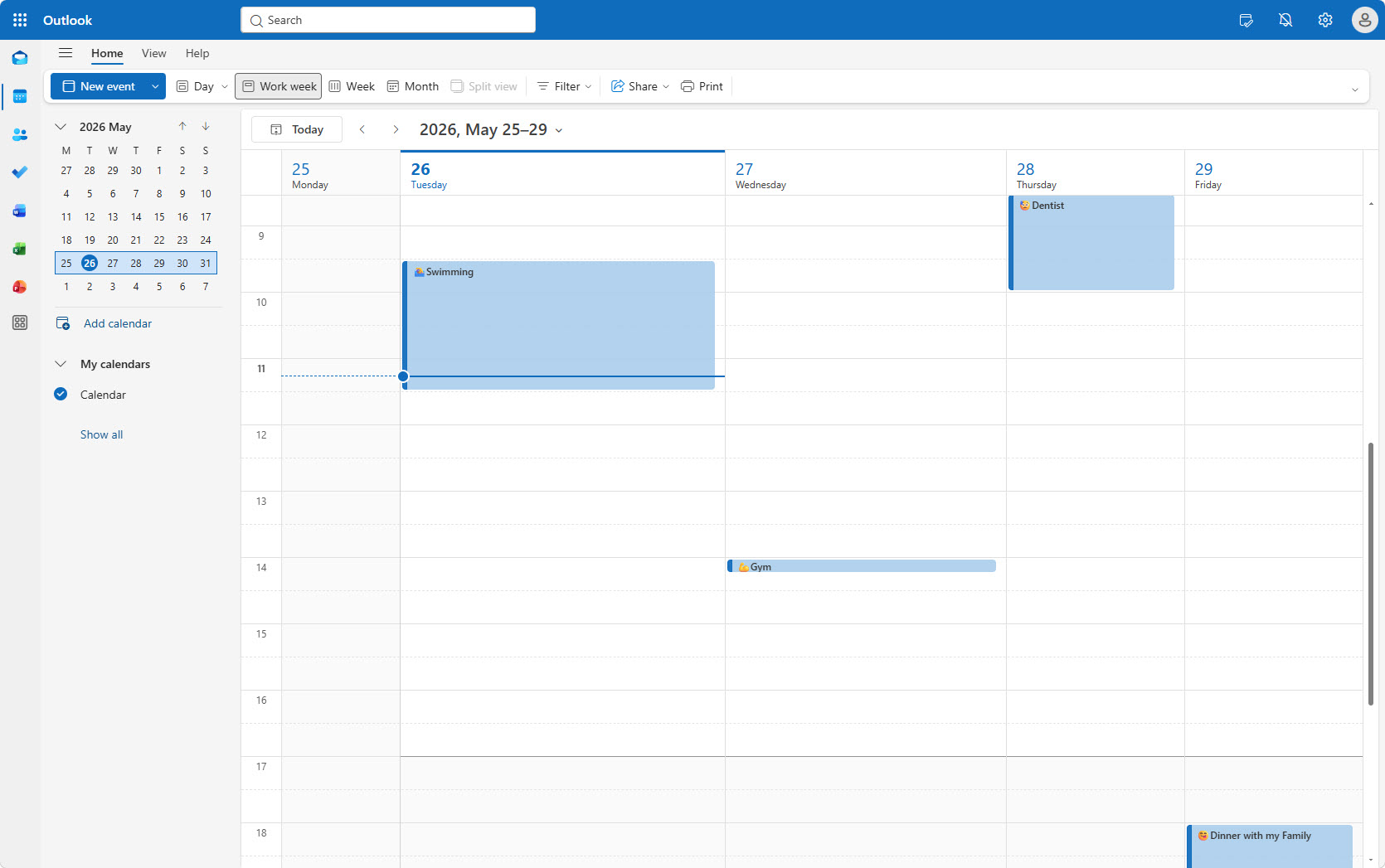
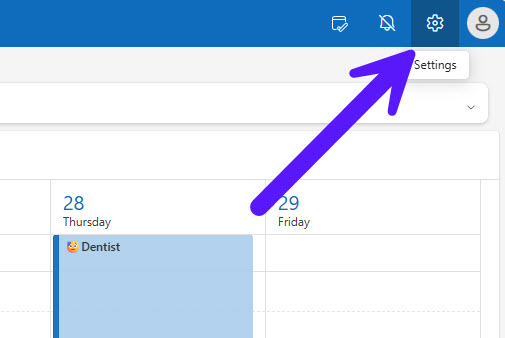
Click the gear icon in the top-right corner.
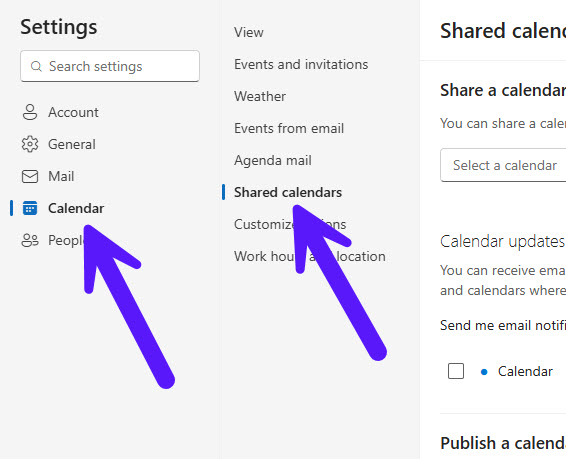
Open the “Calendar” section and then select “Shared calendars”.
Under “Publish a calendar”, choose the calendar you want to share.
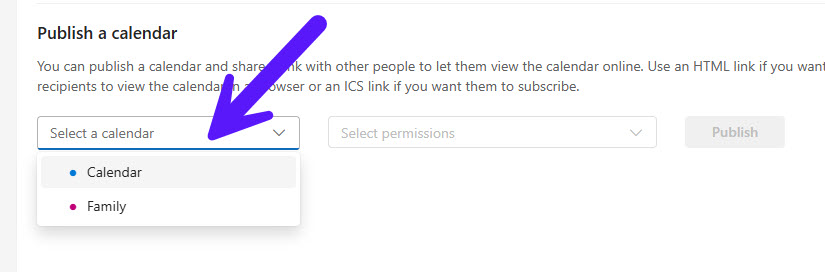
Select the permissions for the shared calendar. You can choose between “Can view when I’m busy”, which only shares your busy time while keeping all event details private, or “Can view all details”, which also shares information such as event titles, descriptions, and other calendar details.
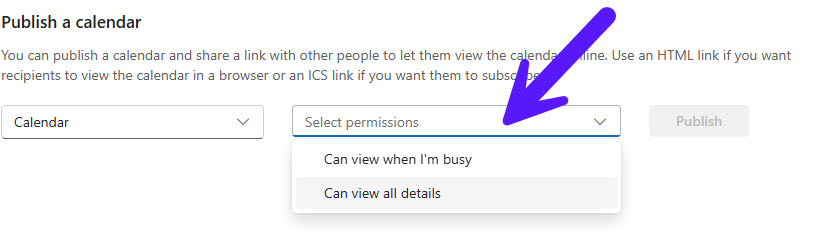
Click “Publish”.

Outlook gives you the option to either share only your availability or all event details. In most cases, sharing only busy and free times is the better choice because it protects sensitive information stored inside your events.
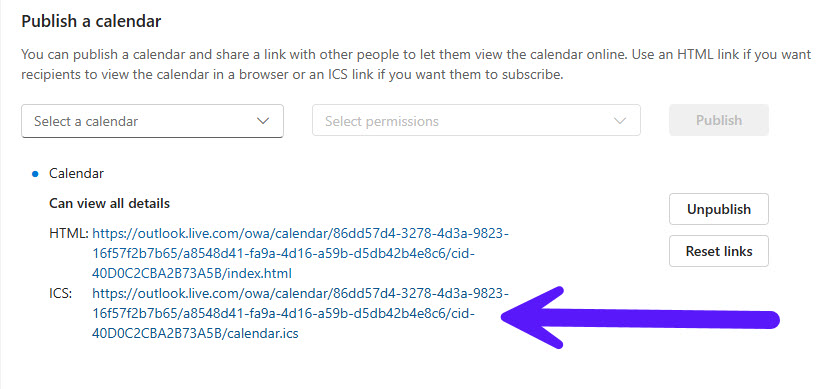
Once you click publish, Outlook generates an ICS link immediately. You can then copy the URL and use it in other calendar applications or sharing tools.
How to Get an ICS Link from Apple Calendar
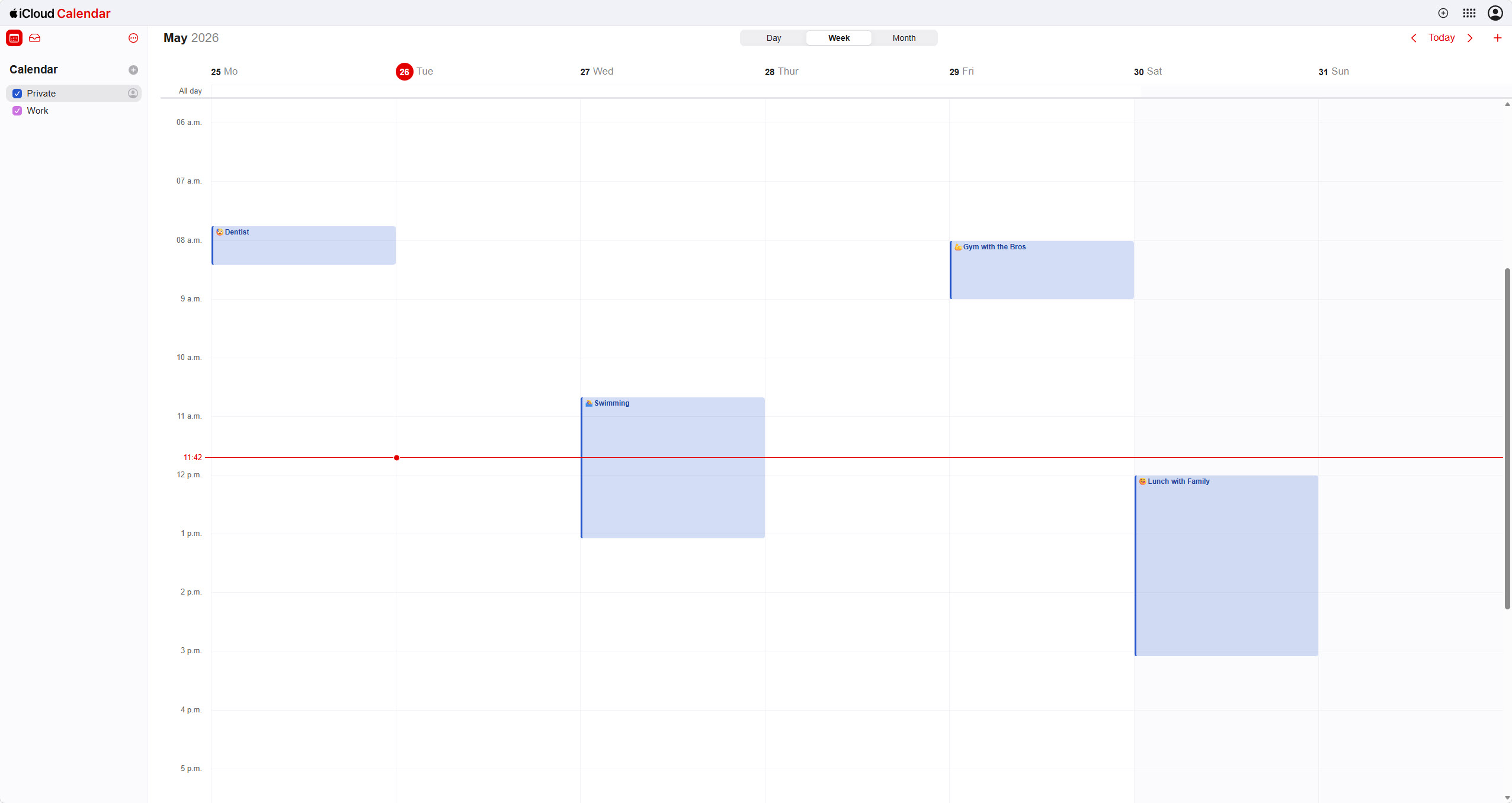
If you use Apple Calendar through iCloud, you can generate an ICS link directly from the web interface.
Open iCloud Calendar by visiting https://www.icloud.com/calendar.
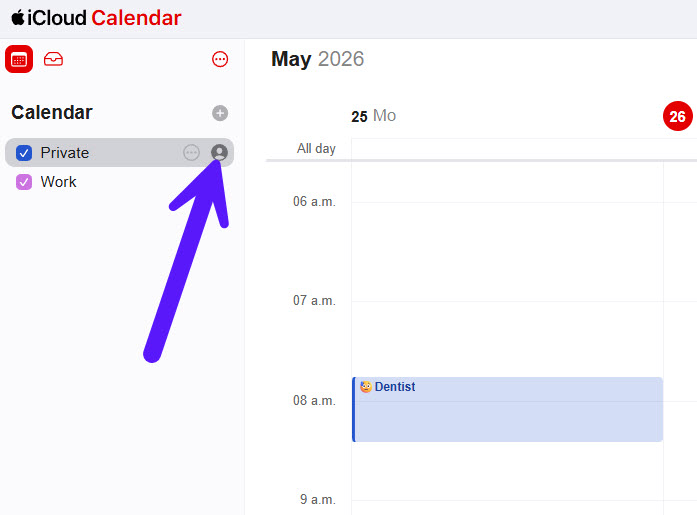
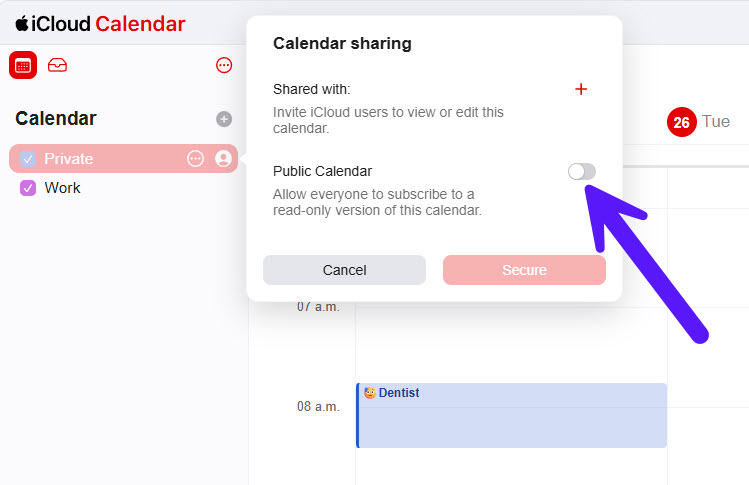
Click the person icon next to the calendar you want to share.
Enable the “Public Calendar” option.
Copy the generated ICS link.
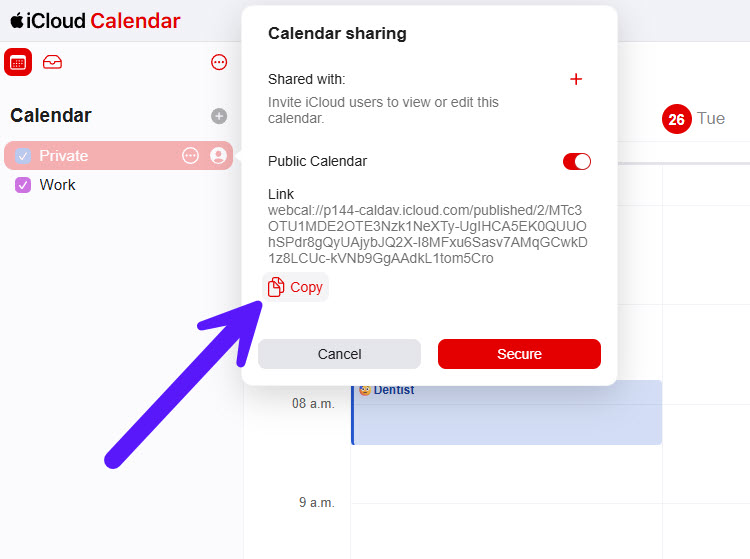
It’s important to know that Apple requires the calendar to be public before an ICS link becomes available. Because of this, anyone with the link may potentially access the calendar contents. Before sharing the link, make sure you understand what information is visible.
Sync Your Calendars Securely
As you’ve probably noticed, many providers require calendars to be public or partially public before they generate an ICS URL. While this works well for basic sharing, it may not be ideal if you want to keep your event information private.
A dedicated calendar syncing tool like Syncory can help you avoid those limitations. Instead of exposing your calendar publicly, you can securely sync availability across multiple calendars in real time while keeping event details private.
If you regularly manage multiple calendars across Google, Outlook, or Apple Calendar, using a synchronization platform is often the easiest and safest long-term solution.