How to Sync Outlook Calendar With an Android Phone or Tablet (Step-by-Step Guide)
If you use Outlook Calendar together with an Android phone or tablet, syncing the two can make it much easier to manage meetings, reminders, and appointments across all your devices. Once connected, your calendar stays updated automatically, allowing you to access your schedule from your phone or tablet without manually transferring events.
One of the most common ways to sync Outlook Calendar with Android is by using the official Microsoft Outlook app. In this guide, we’ll walk you through the setup process step by step so you can connect your Outlook Calendar to your Android device in just a few minutes.
How to Sync Outlook Calendar With Android Using the Outlook App
The simplest way to sync Outlook Calendar with Android is by using the official Microsoft Outlook app.
Before getting started, make sure the Microsoft Outlook app is installed on your Android phone or tablet. You can download it directly from the Google Play Store and sign in with your Outlook or Microsoft account before continuing with the setup.
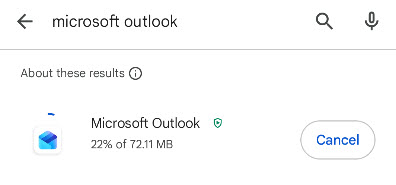
To sync Outlook Calendar with your Android device, follow these steps:
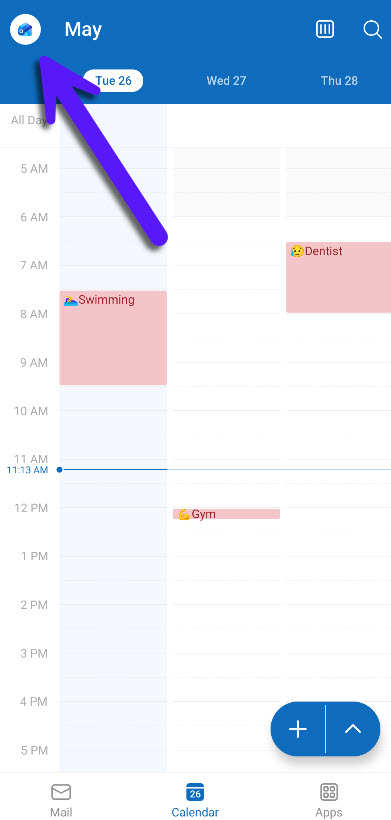
Open the menu by clicking the Outlook icon in the top-left corner of the app.
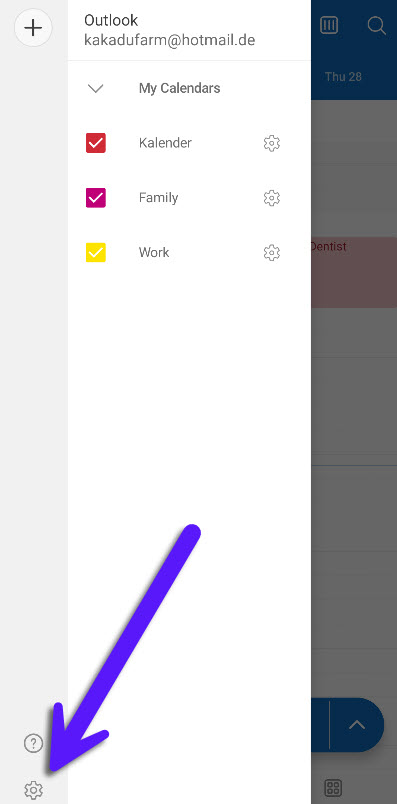
Navigate to the Settings menu by clicking the gear icon in the bottom-left corner.
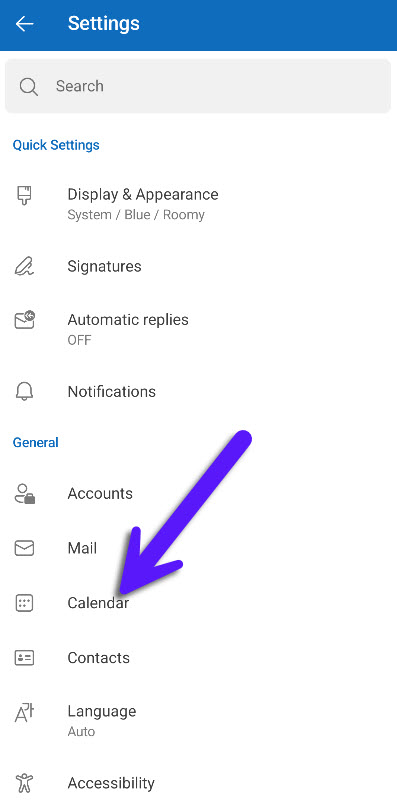
Click on the “Calendar” menu item.
Enable synchronization by turning on the “Sync calendars” toggle.
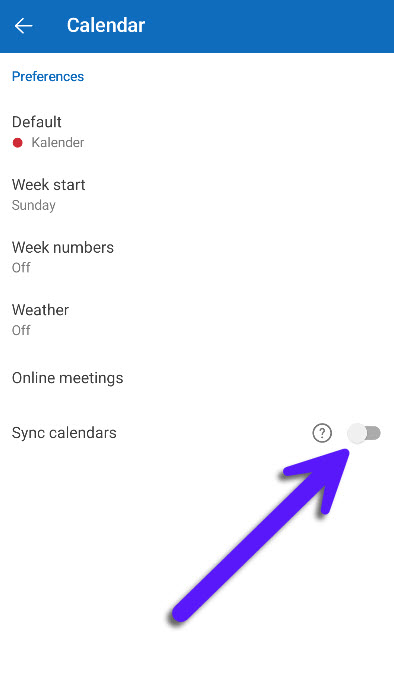
Allow Outlook to access your Android calendar when prompted by your device.
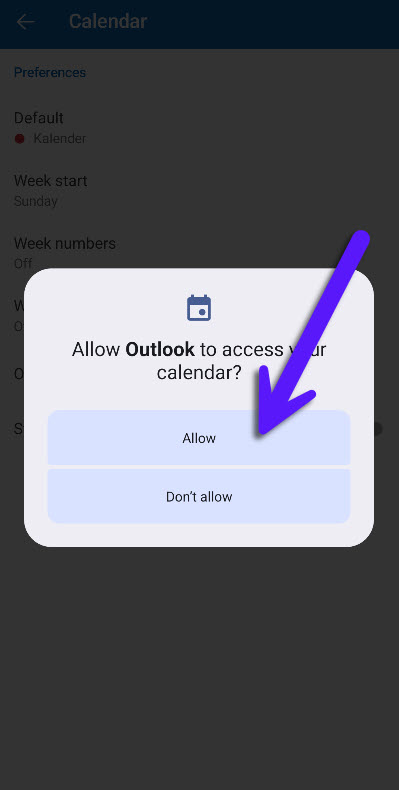
After enabling synchronization, your Outlook events should start appearing automatically across your Android calendar apps. Any changes you make, such as creating, editing, or deleting events, will also sync between devices. Depending on your device and internet connection, synchronization may occasionally take a few moments before updates appear everywhere.
Limitations of Syncing Outlook Calendar With Android
If you only use Outlook Calendar on a single Android device, the official Outlook app is usually enough. However, limitations can appear once you start using multiple devices, calendars, or platforms at the same time.
A dedicated syncing solution like Syncory helps keep Outlook calendars updated automatically in the background across all your devices. Instead of relying on multiple apps or separate sync setups, your availability and events stay connected in real time without additional manual work.
This is especially useful for users managing multiple calendars who want a simpler and more reliable syncing experience across platforms.