Using Copilot with Google Calendar and Outlook: A Complete Guide
Last updated August 13, 2026
Microsoft Copilot is becoming an increasingly valuable assistant for managing schedules, checking availability, and staying on top of daily commitments. By connecting your calendar accounts, Copilot can provide insights into upcoming events, help answer scheduling questions, and support more efficient time management.
Whether you use Microsoft Outlook, Google Calendar, or a combination of both, integrating your calendars with Copilot allows you to get more value from the platform and streamline your workflow.
In this guide, we'll show you how to connect your calendars to Microsoft Copilot, explain how calendar access works, and explore how to create a more complete scheduling experience across multiple calendar accounts.
Connecting Google Calendar and Outlook to Microsoft Copilot
Connecting a calendar to Microsoft Copilot only takes a few minutes. The setup process is identical for both Google Calendar and Outlook.
Open Microsoft Copilot and sign in to your account.
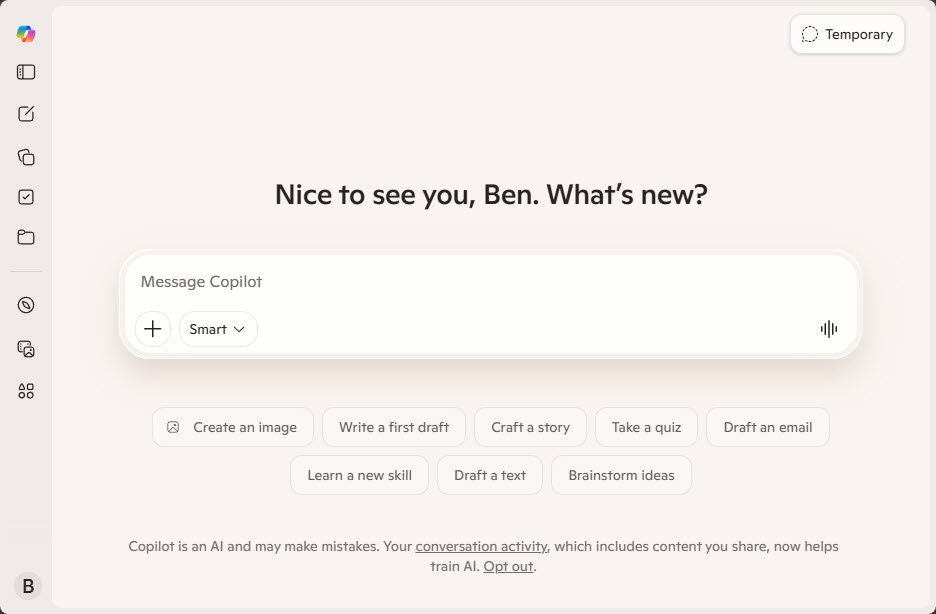
Click your profile in the bottom-left corner and select Settings.
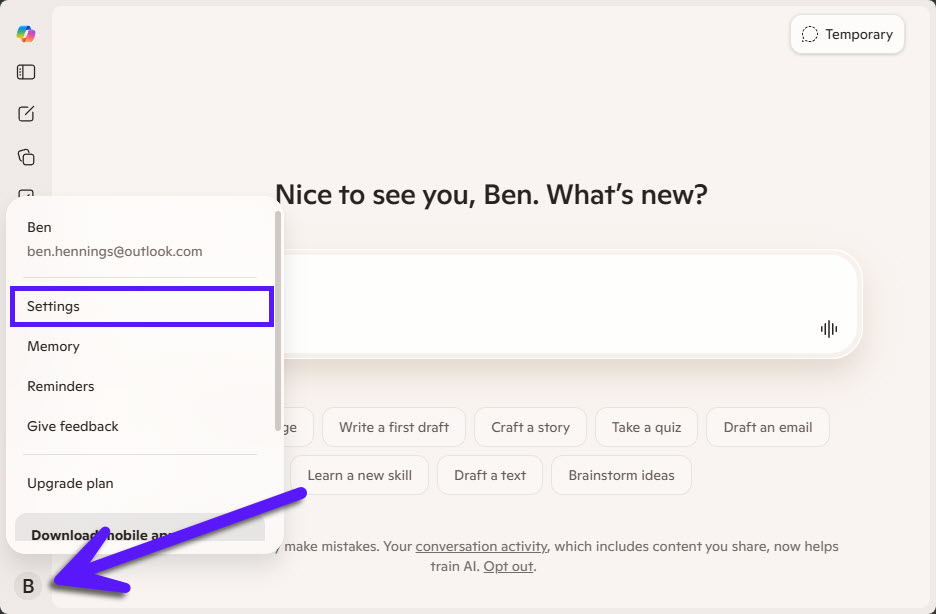
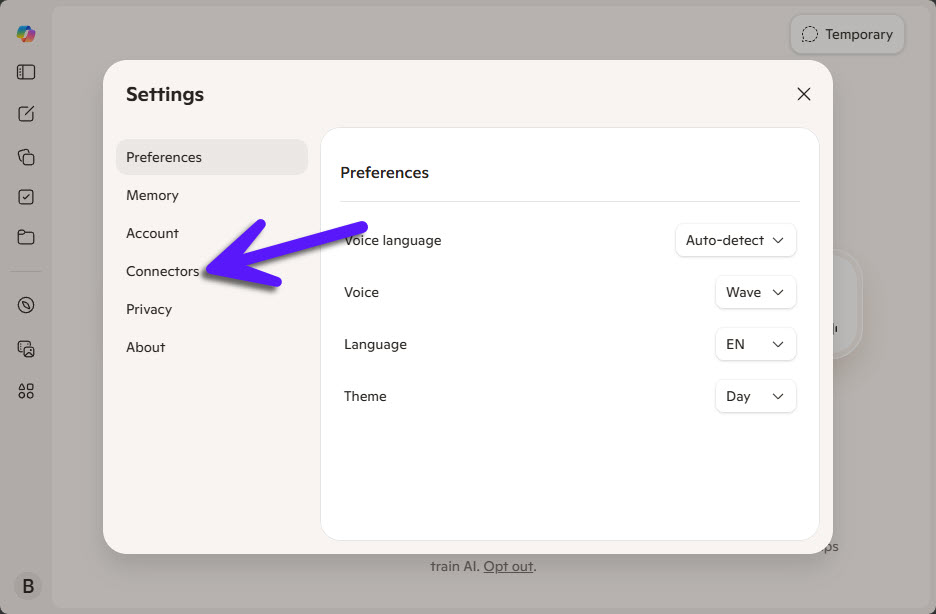
Navigate to Connectors.
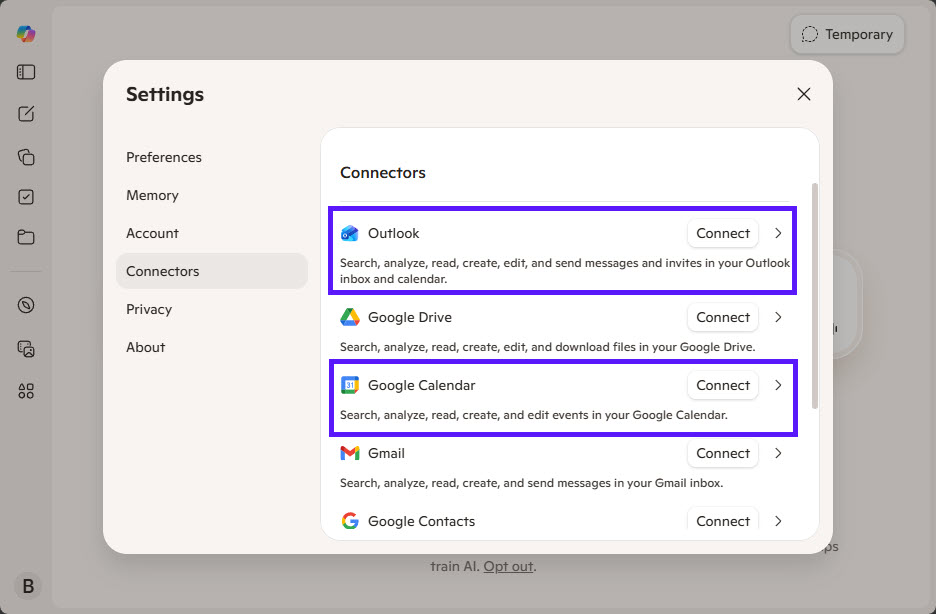
Choose the calendar provider you want to connect (Google Calendar or Microsoft Outlook) by clicking connect on the right side.
Follow the authentication instructions to complete the connecting process.
Microsoft Copilot Calendar Limitations
Before relying on Copilot for scheduling and availability management, it's important to understand its current calendar limitations. While Copilot supports both Outlook and Google Calendar, it only has access to a limited subset of your calendar data, which can be problematic for users who manage multiple accounts or use secondary calendars.
Microsoft Copilot currently allows you to connect only a single Outlook account. While you can enable or disable access for the connected account, there is currently no option to add multiple Outlook accounts simultaneously.
Even within a connected Outlook account, Copilot only appears to read events from the primary calendar. Events stored in secondary Outlook calendars are not considered when checking availability or answering scheduling-related questions.
The same limitation applies to Google Calendar. Copilot supports connecting only a single Google account, making it difficult to work with multiple personal or business Google accounts.
Even within a connected Google account, Copilot only appears to read events from the primary Calendar. Events stored in secondary, shared, or custom calendars are generally not included when Copilot evaluates availability.
Creating a Unified Calendar View for Copilot
Given these limitations, the most practical solution is to consolidate all calendar events into a single calendar that Microsoft Copilot can access.
In theory, you could manually copy events between calendars to ensure everything is available in one place. However, this quickly becomes time-consuming, difficult to maintain, and highly prone to errors.
A better approach is to automatically synchronize all calendars with a tool like Syncory into a single Outlook calendar and then connect that calendar to Microsoft Copilot.
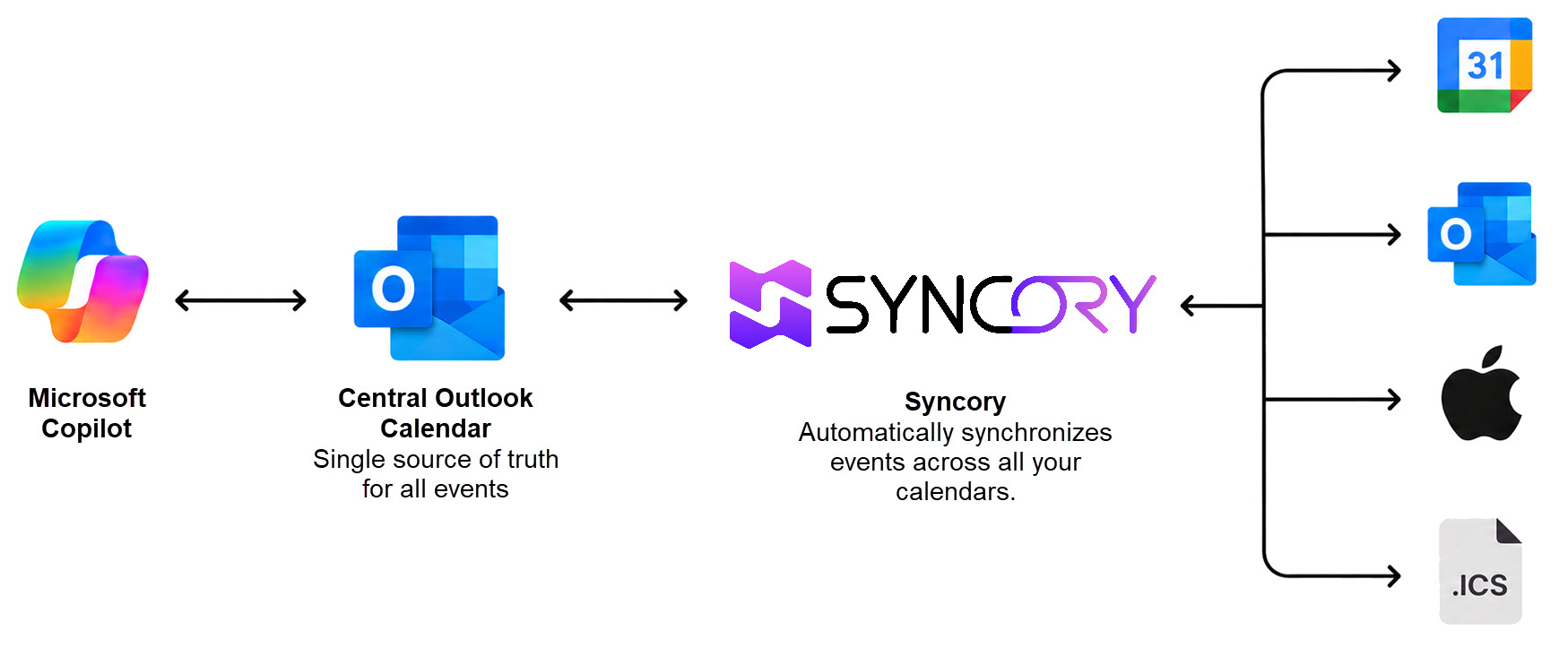
Since Copilot is deeply integrated into the Microsoft ecosystem, using Outlook as the central calendar is often the most practical option. By consolidating events from Google Calendar, additional Outlook accounts, shared calendars, and other calendar sources into one primary Outlook calendar, Copilot can work with a much more complete view of your schedule.
In practice, the setup works as follows:
Microsoft Copilot reads availability from your primary Outlook calendar.
Syncory automatically synchronizes events from your other calendars into that Outlook calendar.
Your Outlook calendar becomes a centralized source of truth for all appointments.
Copilot can then analyze a much more complete schedule when answering availability or scheduling questions.
With this setup in place, Syncory keeps all calendar sources synchronized, allowing Copilot to work with a more complete view of your schedule and provide more reliable scheduling recommendations.