Calendly Drops Apple iCloud Support: What to Do Now
You have Calendly set up, your calendar is in iCloud, and you expect the two to work together. After all, Apple Calendar is where you manage your schedule every day. Then you try to connect your calendar to Calendly and discover that iCloud is no longer available for new connections.
This is not a temporary error or a setting you have missed. Since August 20, 2024, Calendly no longer supports new connections to iCloud Calendar. Existing connections created before that date can still work, but if you are setting up Calendly today, there is no direct way to connect your iCloud calendar. For Apple users, that creates a surprisingly frustrating problem.
Fortunately, you do not have to choose between Calendly and Apple Calendar. There are several ways to connect the two, but they are not all created equal. In this guide, we will look at what changed, why the most common workaround has its limitations, and two ways to solve the problem with Syncory.
Why Calendly Changed Its Integration
To understand the problem, it helps to clear up one small but important detail. The terms Apple Calendar, iCal, and iCloud Calendar are often used interchangeably, but they are not actually the same thing. Apple Calendar is the app. iCloud Calendar is the service behind it. Apple Calendar is what you see and interact with on your iPhone, iPad, or Mac, while iCloud Calendar is the cloud based service that stores your calendar data and keeps it synchronized across your Apple devices. When you add an appointment on your iPhone, iCloud is what makes that change available on your Mac and iPad as well.
So why did Calendly stop supporting new iCloud connections in the first place? Calendly has confirmed the change, but it has not provided a detailed public explanation of the specific technical or business reasons behind it. What we do know is that its former iCloud integration worked differently from its Google and Microsoft integrations. Calendly's own security documentation states that the iCloud integration required users to use an app specific password, while Google Calendar and Microsoft Outlook use OAuth based authentication. That difference creates additional technical and maintenance requirements. It does not mean iCloud is impossible or inherently insecure to integrate, but it does mean that supporting iCloud requires a separate authentication flow and a different technical setup from Calendly's major Google and Microsoft integrations.
There may also be a business consideration. Google Workspace and Microsoft 365 are deeply established in the business and enterprise market, while Apple's calendar ecosystem is particularly important to individual professionals and smaller businesses. Calendly has not confirmed that this was a factor, so it would be speculation to call it the reason. Still, it is a plausible explanation for why maintaining a separate iCloud integration may no longer have been worth the engineering effort. Whatever the exact reason, one thing is clear: this is not a temporary outage.
For anyone setting up Calendly today, that leaves an obvious question: If Calendly cannot connect directly to iCloud, how can you keep using Calendly while Apple Calendar remains your primary calendar? That is where the common Google Calendar workaround comes in.
The "Google Calendar Bridge": A Temporary Fix, Not a Real Solution
A common workaround is to use Google Calendar as a middleman between iCloud and Calendly. You make your iCloud calendar available through a public calendar URL, subscribe to it in Google Calendar, and then connect Google Calendar to Calendly. This allows Calendly to see your iCloud events indirectly and use them when checking your availability.
The problem is that a calendar subscription is not the same as real synchronization. Updates are not necessarily available immediately, which means a new appointment added to your iPhone may not reach Google Calendar in time. Google states that subscribed calendars can take up to 12 hours to update. If Calendly checks your availability before that update happens, you could end up with a double booking.
There is also a privacy consideration. Making an iCloud calendar public means that anyone with the calendar URL can subscribe to it. For a calendar containing customer appointments, personal events, or other sensitive information, that is not an ideal setup.
It may look like a clever workaround, but it is ultimately a fragile setup. For a professional scheduling workflow, that is a compromise worth avoiding.
Solution 1: Bridge iCloud Calendar and Calendly with Syncory
If you want to keep using Calendly while iCloud Calendar remains your primary calendar, you do not need to make your iCloud calendar public or rely on a calendar subscription. Instead, you can use Syncory as the synchronization layer between iCloud Calendar and Google Calendar.
The idea is simple. Calendly already works with Google Calendar, so there is no need to change anything on the Calendly side. You connect your Google Calendar to Calendly as usual, then use Syncory to connect that Google Calendar with your iCloud Calendar. Instead of Google periodically reading a public copy of your iCloud calendar, Syncory keeps the two calendars synchronized directly.
The setup then looks like this:
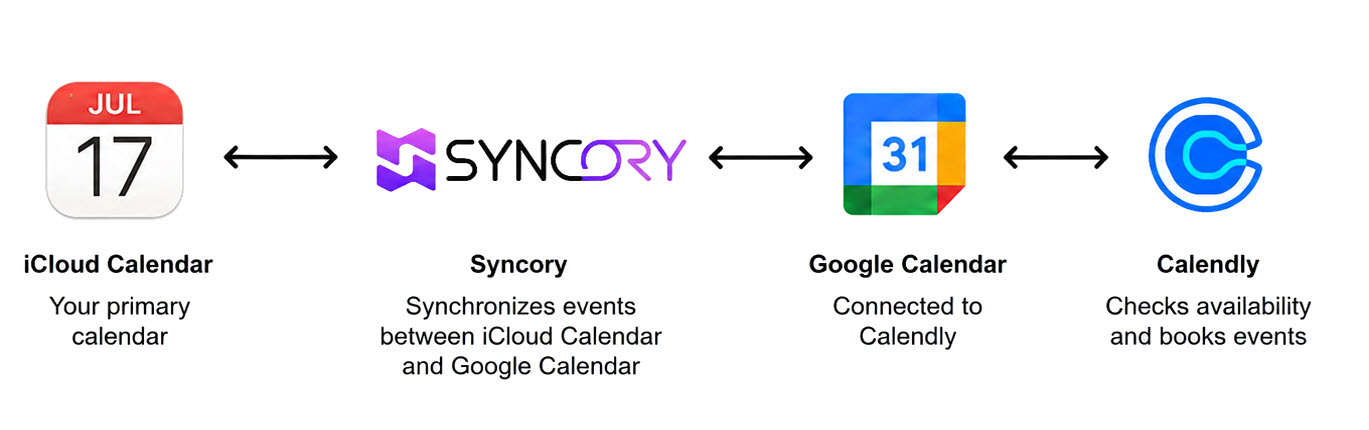
This also means that the synchronization can work in both directions. When you add an appointment to your iCloud Calendar, Syncory can synchronize it to Google Calendar, where Calendly can take it into account when checking your availability. When someone books an appointment through Calendly, the event is added to your Google Calendar and Syncory can synchronize it back to your iCloud Calendar.
Solution 2: Switch to Syncory, a Calendly Alternative with Native iCloud Support
If you are not tied to Calendly, there is another way to solve the problem: switch to a scheduling platform that supports iCloud Calendar natively. Instead of adding another service to connect Calendly with iCloud Calendar, you can choose a Calendly alternative that already integrates with the calendar you use every day.
With Syncory, you can create a complete booking experience around your existing iCloud Calendar. Clients can book appointments through your own scheduling links, while Syncory uses your iCloud Calendar to determine your availability.
Scheduling Links: Create personalized booking links for different types of appointments and let clients book a time that works for them. Each link can have its own settings and availability.
Meeting Locations: Choose where each appointment takes place, including Google Meet, Microsoft Teams, a custom location, or any URL you want to provide.
Custom Availability: Define exactly when people can book you. Set working hours, booking windows, buffers, and exceptions to make sure your booking page matches your real availability.
Time Zone Management: Your availability is automatically shown in the appropriate time zone, making it easy for clients to book with you from anywhere.
Brand Customization: Customize your booking pages to match your brand, including colors, profile information, and other elements of the booking experience.
Flexible Scheduling Settings: Go beyond basic availability with detailed settings for appointment duration, booking limits, buffer times, and other rules that give you control over how your booking process works.
The result is a scheduling experience that works directly with the iCloud calendar you already use, without having to build a workaround around an unsupported Calendly integration.
Conclusion: Keep Calendly or Make the Switch
Calendly's decision to stop accepting new iCloud Calendar connections is frustrating, but it does not mean you have to give up either Calendly or Apple Calendar.
If you already rely on Calendly and want to keep your existing booking setup, Syncory gives you a way to connect your iCloud Calendar with the Google Calendar that Calendly supports. Your existing Calendly workflow stays intact while Syncory handles the synchronization between your calendars.
If you are open to changing your scheduling platform, Syncory can also replace Calendly altogether, with native iCloud Calendar support and built in scheduling features such as booking links, custom availability, meeting locations, and time zone management.