How to use your Calendar with Gemini: A complete Guide
Last updated August 13, 2026
Google Gemini can do much more than answer questions. It can summarize your schedule, help you plan your day, create new calendar events, update existing ones, and answer questions about your upcoming appointments.
In this guide, you'll learn how to connect Google Workspace apps such as Google Calendar to Gemini. Although they are called Google Workspace apps, you don't need a paid Google Workspace subscription. You can use this feature with a personal Google account as well.
Connecting Google Workspace to Gemini
Connecting the Google Workspace to Gemini only takes a few minutes.
Open Gemini and sign in to your account.
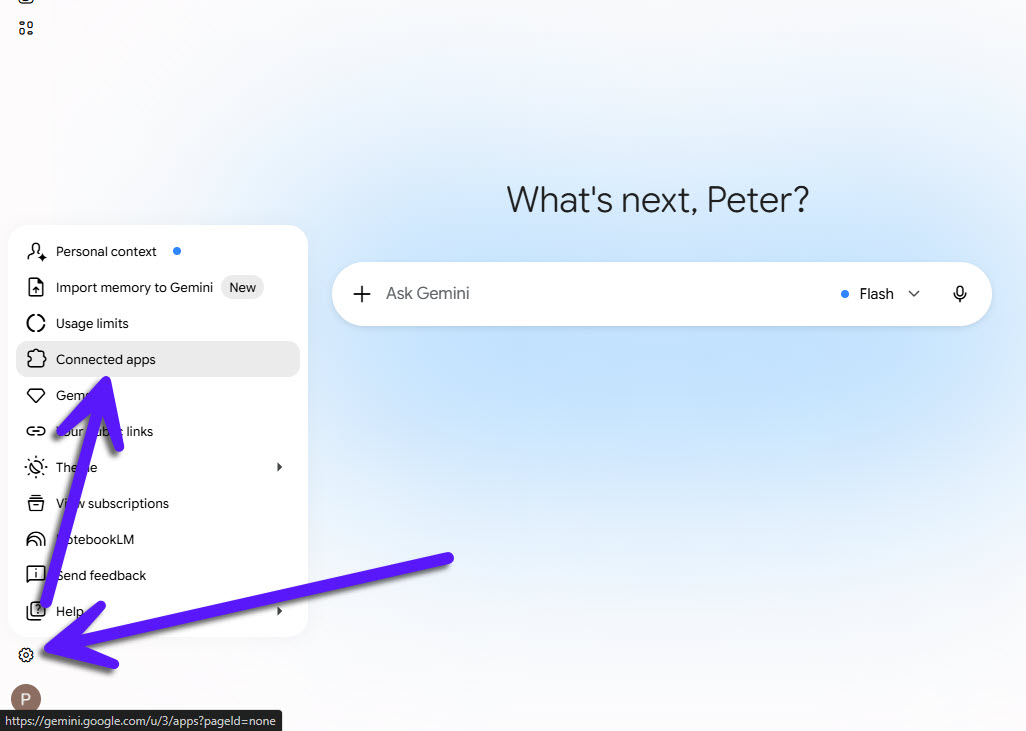
Navigate to Settings by clicking the gear icon in the bottom left corner. Then select Connected apps.
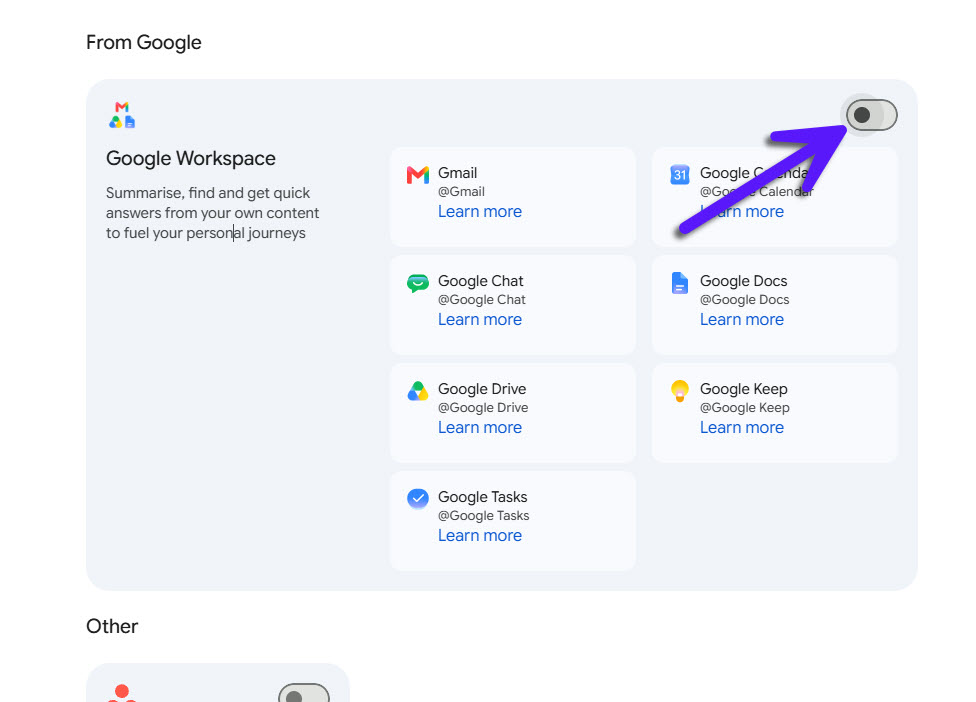
Turn on the toggle in the top right corner of the Google Workspace card.
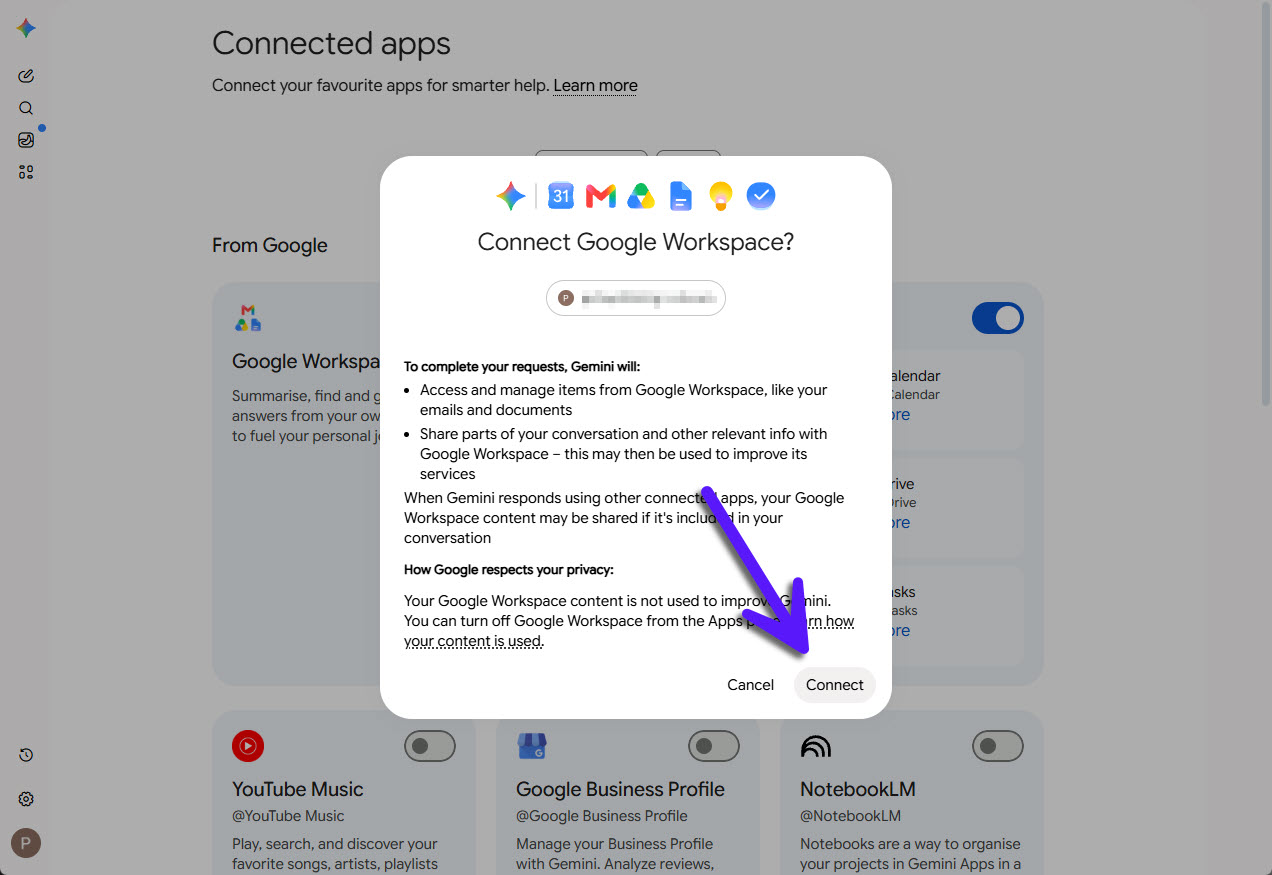
Click Connect to authorize Gemini to access your Google Workspace apps, including Google Calendar.
Is the Connect button disabled? If you see a message asking you to enable Google Workspace smart features, skip ahead to the Troubleshooting section at the end of this guide.
That's it! Your Google Workspace apps are now connected to Gemini, and you can start asking questions about your Google Calendar or manage events using natural language.
For example, you can ask Gemini:
What meetings do I have tomorrow?
When am I free next week?
Create a meeting with Sarah on Friday at 2 PM.
Before you start relying on Gemini for calendar management, it's important to understand its current limitations.
Gemini Calendar Limitations
Although Gemini can read and manage your Google Calendar, there are a few important limitations you should be aware of.
Gemini doesn't have access to every Google Calendar: Although Gemini can access multiple Google Calendars, it doesn't have access to every calendar in your Google account. For example, shared calendars, imported calendars, and certain special calendars may not be available. As a result, Gemini may not always have a complete view of your schedule.
Gemini can't access calendars outside your connected Google account: Gemini can only access calendars that belong to your connected Google account. Calendars stored in other services, such as Microsoft Outlook or Apple Calendar (iCloud), aren't directly available. The same applies if you use multiple Google accounts. Gemini can only access the account that's currently connected, so appointments stored in another Google account won't appear when you ask Gemini about your schedule.
How to Work Around Gemini's Calendar Limitations
While Gemini's calendar integration is useful, its limitations can prevent it from seeing your complete schedule. If your appointments are spread across multiple Google accounts, Outlook, Apple Calendar, or other calendar providers, Gemini won't have access to all of them.
One option would be to manually copy events into a calendar that Gemini can access. However, this quickly becomes time consuming, difficult to maintain, and highly prone to errors as appointments are added, updated, or canceled.
A more practical solution is to automatically synchronize your calendars using a tool like Syncory.
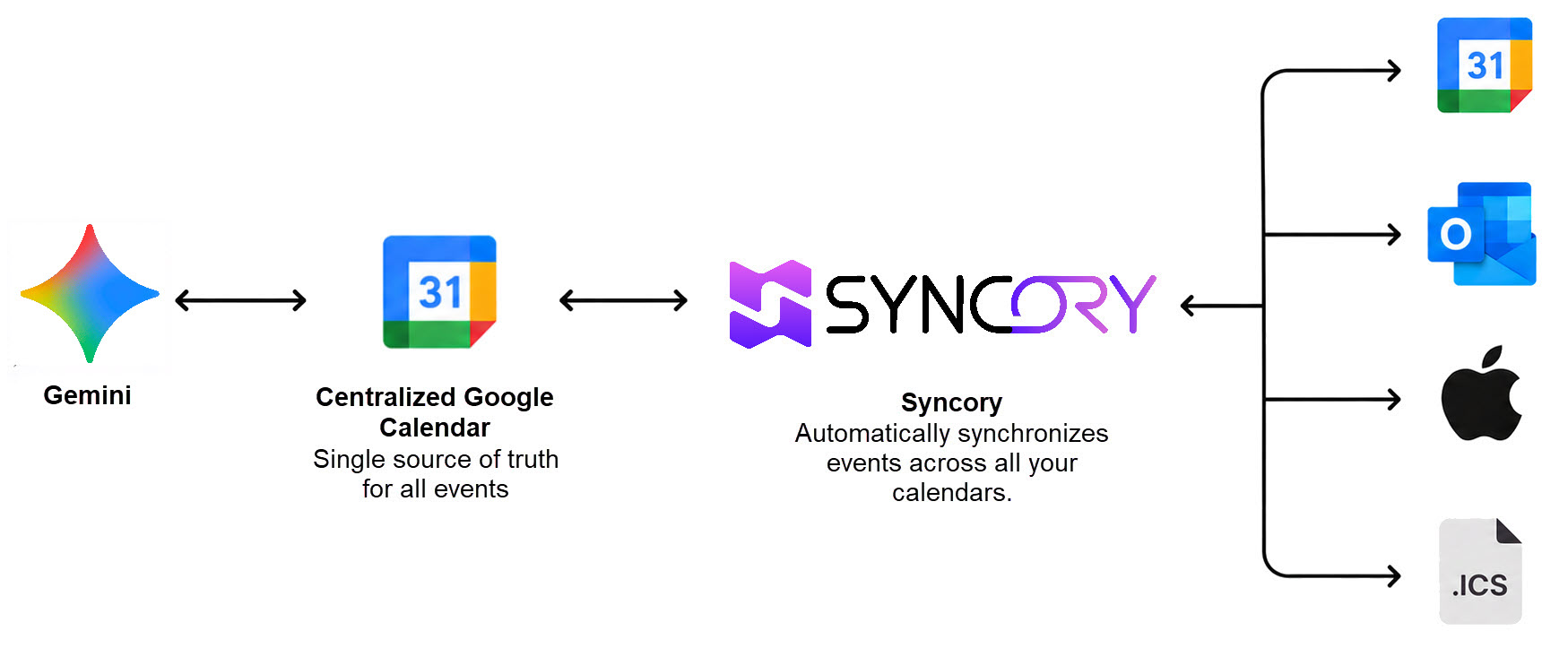
By synchronizing Google Calendar, Outlook, Apple Calendar, and other calendar providers into a single Google Calendar, Gemini can work with a much more complete view of your schedule without requiring any manual effort.
Syncory automatically keeps your calendars synchronized in the background. New events, updates, and cancellations are reflected across your connected calendars, ensuring that Gemini always has access to the latest version of your schedule. This allows Gemini to provide more accurate answers, create events with fewer conflicts, and help you plan your day with greater confidence.
Conclusion
Gemini makes it easy to interact with your calendar using natural language. Once connected, it can answer questions about your schedule, create events, update appointments, and help you plan your day.
However, Gemini doesn't have access to every calendar. If your appointments are spread across multiple Google accounts, Outlook, Apple Calendar, or other calendar providers, it won't have a complete view of your schedule.
By synchronizing your calendars with Syncory, you can consolidate events into a single Google Calendar that Gemini can access. This allows Gemini to work with a much more complete picture of your availability and provide more accurate scheduling and planning assistance.
Troubleshooting: Can't Connect Google Workspace (Gmail Settings)
If the Connect button is disabled when trying to connect Google Workspace to Gemini, you most likely need to enable Gmail's smart features first.
You'll typically see a message similar to the one below:
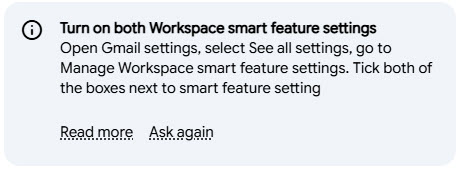
Fortunately, this only takes a minute to fix.
1. Open Gmail
Open Gmail and sign in with the same Google account you're using with Gemini.
2. Open Gmail Settings
Click the gear icon in the top right corner. In the panel that opens, click See all settings.
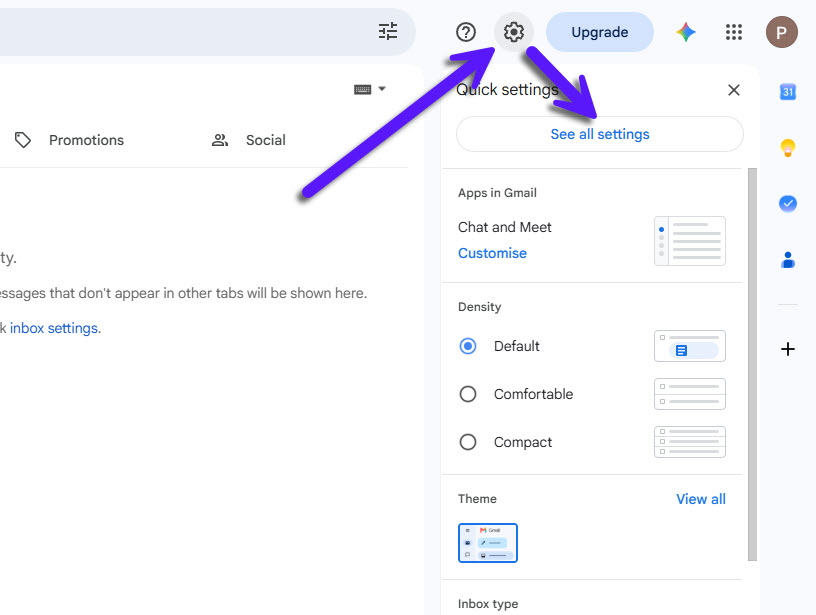
3. Scroll down to Google Workspace smart features
On the General tab, scroll down until you reach Google Workspace smart features and click Manage Workspace smart feature settings.
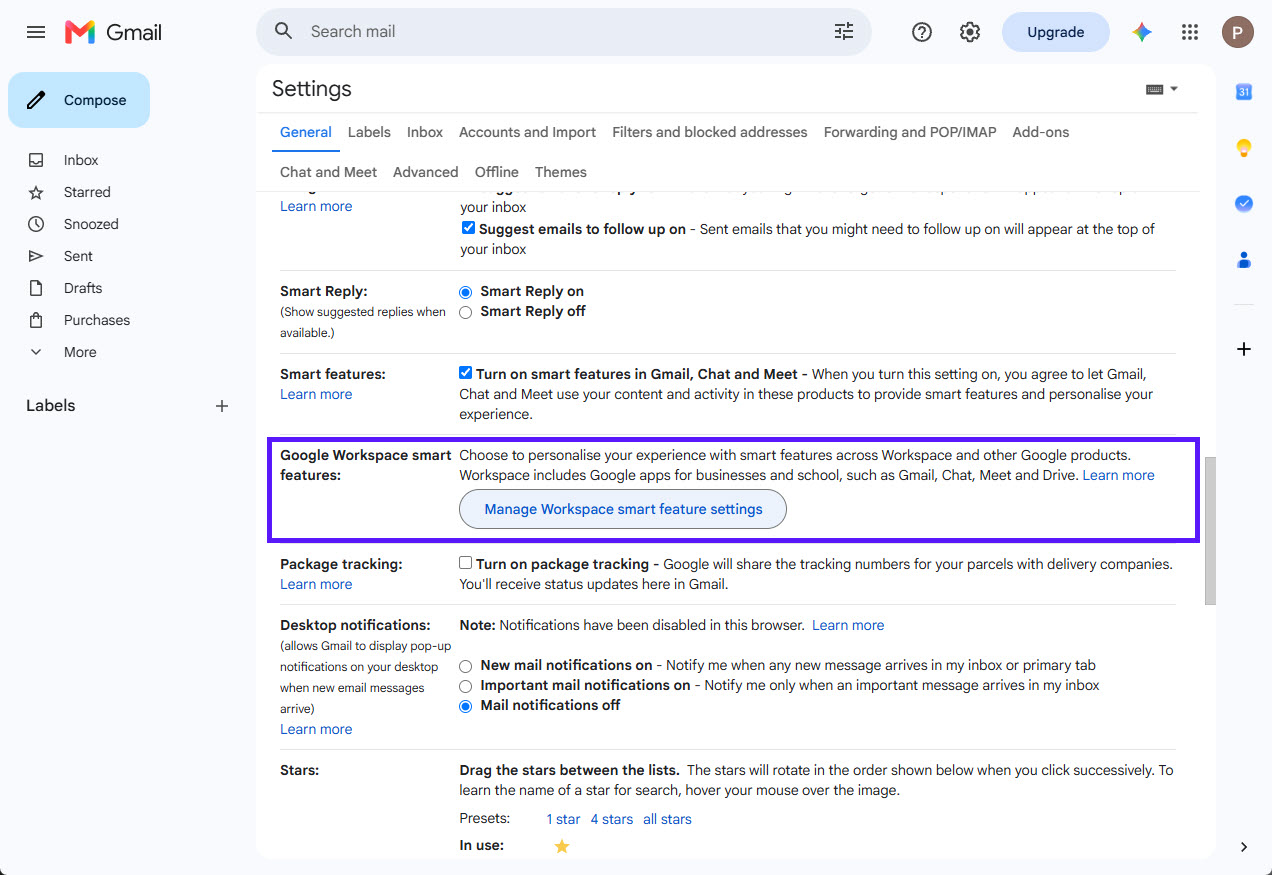
4. Enable Smart Features
Enable both of the following options:
Smart features in Google Workspace
Smart features in other Google products
Click Save to apply the changes.
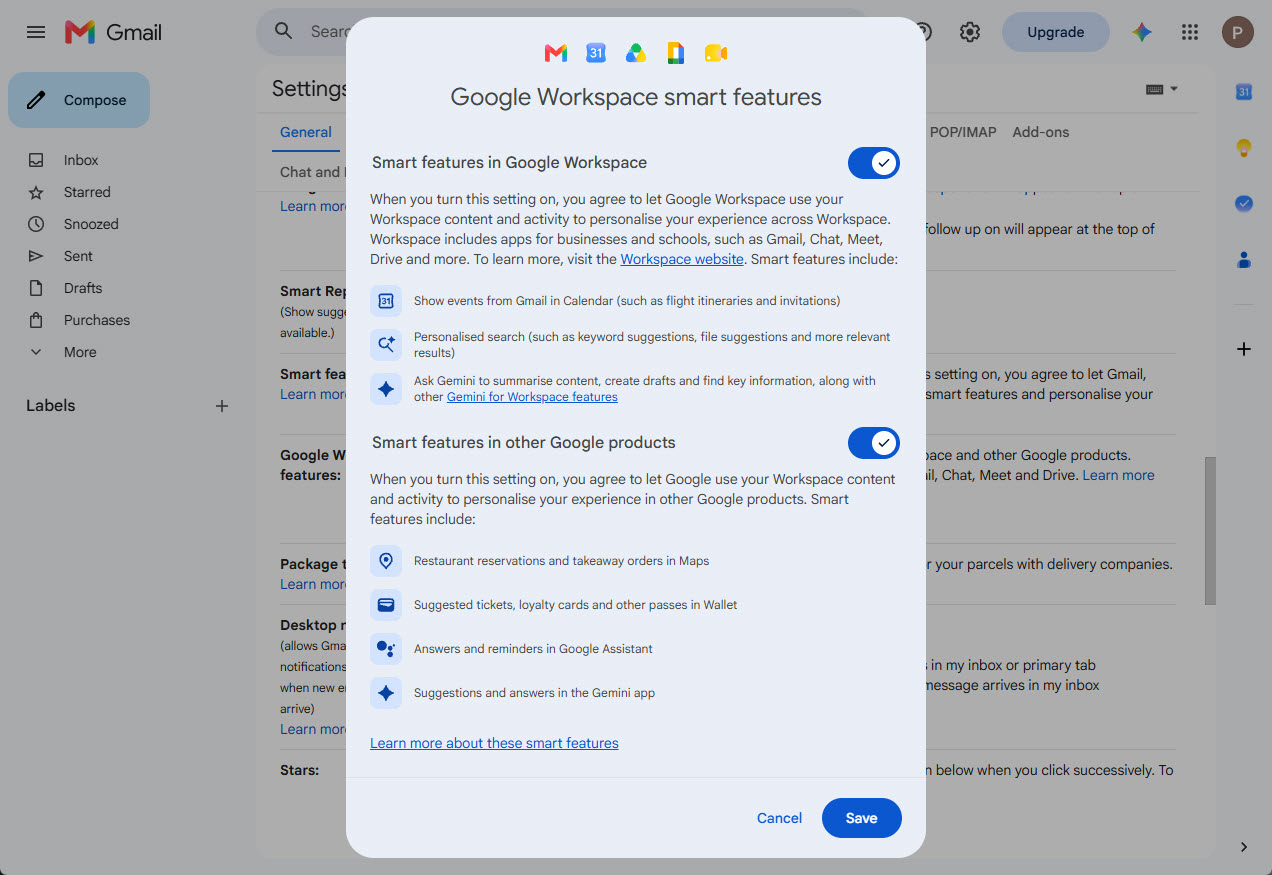
That's it! The issue should now be resolved, and you can return to the Connecting Google Workspace to Gemini section to complete the setup.